










Google Earth Pro users on both Windows and Mac are finding out the hard way that the desktop app’s built-in directions feature is completely broken.
People trying to map a route from point A to point B using the standard “Get Directions” tool are just getting a blank white box. In other cases, they are watching their typed inputs vanish into thin air right after hitting search.
The bug seems to have kicked off in early March. Since then, complaints have been piling up on the Google Earth Help community forums, with dozens of users reporting the exact same behavior.
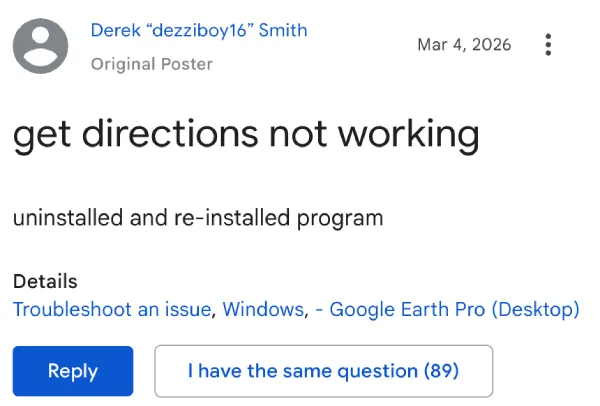
You type your starting location in one box, your destination in the other, hit the button, and nothing happens.
A Diamond Product Expert on the forums confirmed the glitch, noting it is officially a known issue. Google is apparently aware of it.
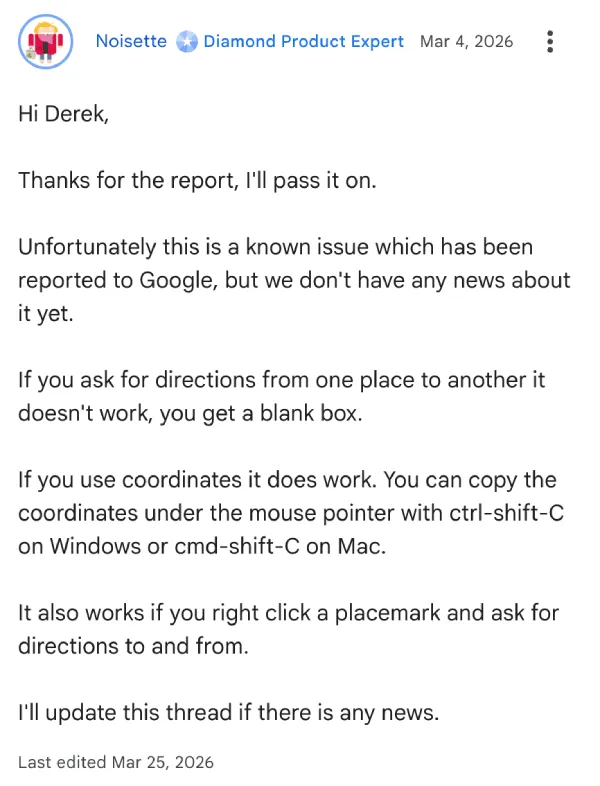
That said, weeks have passed without a software update to patch things up. Some of the duplicate support threads are already being locked by moderators.
Luckily, users have figured out a few ways to bypass the broken menu. The OP who started the main thread actually stumbled into the best workaround just days ago. The easiest fix ignores the dedicated “Get Directions” button entirely.
Instead of using the two separate boxes, just click into the single main search bar at the top of the app. Type your route naturally, like “[your street address] to [desired destination],” and press search.
For most people, this instantly loads the route on the map. It bypasses whatever broken script is failing in the dedicated directions tab.
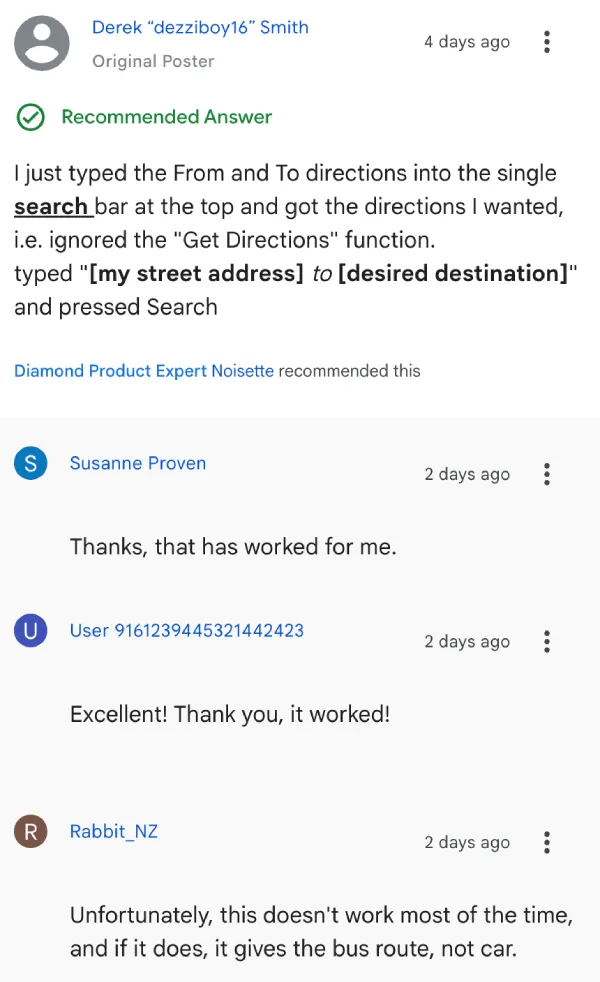
It is not entirely perfect. A few users noticed this method occasionally defaults to public transit or bus routes instead of driving directions. But it gets the map drawing lines again. If that fails, there are a couple of fallback options. The system still handles raw GPS coordinates perfectly fine.
You can copy the exact coordinates under your mouse pointer by pressing Ctrl+Shift+C on Windows or Cmd+Shift+C on Mac. Just paste those into the directions boxes.
You can also right-click on any saved placemark on your map. From the context menu, you can manually select to route directions to or from that specific pin.
Another user pointed out a completely separate workaround for complex routes. You can build your route in Google My Maps on the web, export it as a KML file, and drag that file directly into Google Earth Pro.
None of this excuses a core navigation feature being busted for over a month. Until Google pushes a proper patch for the desktop client, you will just have to rely on the search bar trick to plan your trips.
Featured image generated with AI
TechIssuesToday primarily focuses on publishing 'breaking' or 'exclusive' tech news. This means, we are usually the first news website on the whole Internet to highlight the topics we cover daily. So far, our stories have been picked up by many mainstream technology publications like The Verge, Macrumors, Forbes, etc. To know more, head here.



Dwayne Cubbins
1475 Posts
For nearly a decade, I've been deciphering the complexities of the tech world, with a particular passion for helping users navigate the ever-changing tech landscape. From crafting in-depth guides that unlock your phone's hidden potential to uncovering and explaining the latest bugs and glitches, I make sure you get the most out of your devices. And yes, you might occasionally find me ranting about some truly frustrating tech mishaps.


Follow Us

